
Translation Management
Applies to: v5.0.0 and later
web2project ships with several translations in the locales folder. More are in the locales repository. To use one, copy its folder into locales/ and choose the language under Preferences in the user menu, or set it for everyone with the Host Locale setting and the default user preferences in System Admin.
Creating a translation
So you want to create your own Translation. The good news is that it’s easy. Just follow these instructions to get started:
- Go to your web2project installation and locate the locales folder.
- Copy the /path/to/web2project/locales/en folder and its contents to, e.g. /path/to/web2project/locales/sr
- In this example, we’re translating from English - en, to Serbian - sr, so wherever you see sr you should change that to the short code of the language you’re translating to.
- Specific dialects of a language should be noted. For example, Portuguese is pt while Brazilian Portuguese is pt_br.
-
Make the new folder writable by the user your web server runs as, so the translation editor can save to it. On Linux, for example:
sudo chown -R www-data /path/to/web2project/locales/srUse your web server’s user in place of
www-data(apacheornginxon some systems). Don’t make the folder writable by everyone (chmod 777). Strings for Add On modules that keep their own translations are saved in the module’slocales/srfolder instead, so make that writable too if you translate them.- If you’re on a Windows system, make the folder writable by the web server’s user.
- Open up in your favourite editor the /path/to/web2project/locales/sr/lang.php file and edit it according to the instructions in that file. When you’re done, save and close.
- Log in to your web2project installation, go to System Admin and then to Translation Management.
- At the top you will see two select boxes: the first for the part of the system you’re translating (Module), the second for the Language.
- Choose the part of the system you want to translate and the new language you are translating to.
- Translate, hit submit. That’s about it.
- When you’re done, make the folder read-only for the web server again.
- We’d appreciate if you’d contribute your translation to web2project. Simply follow the directions in our README and your contribution will be shared with thousands. Thank you! :)
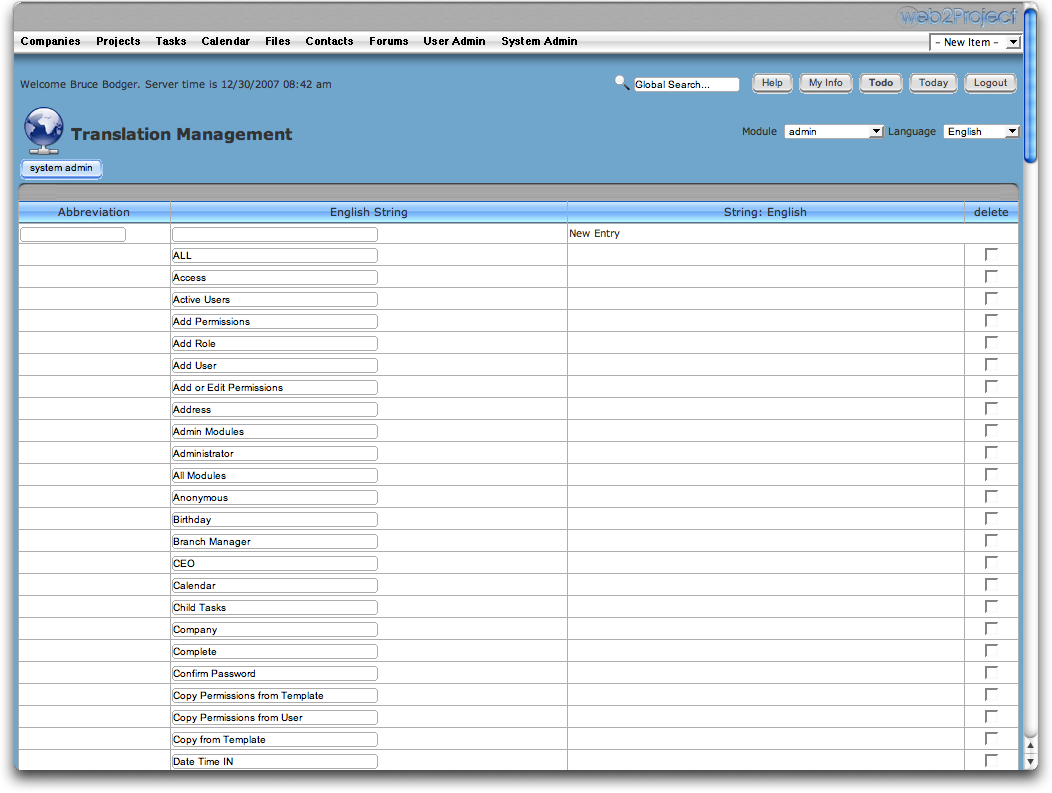
The editor only saves to languages that already have a folder in locales/ and to installed modules.
Translation file format
Since v5.0, translation (.inc) files are read as data, not run as PHP. Each line is a quoted English string, =>, and the quoted translation, followed by a comma:
'Add a Todo'=>'Ajouter une tâche',
"Task Name"=>"Nom de la tâche",
Single or double quotes both work, and comments are allowed. An entry that contains anything else, such as a variable, a function call or text joined with ., is skipped, and that string shows in English. Translation files written for older versions usually work unchanged; check any that built strings with PHP code.
lang.php in each language folder is still PHP; it describes the language and isn’t affected.
If you have questions or comments, ask in the community discussions.